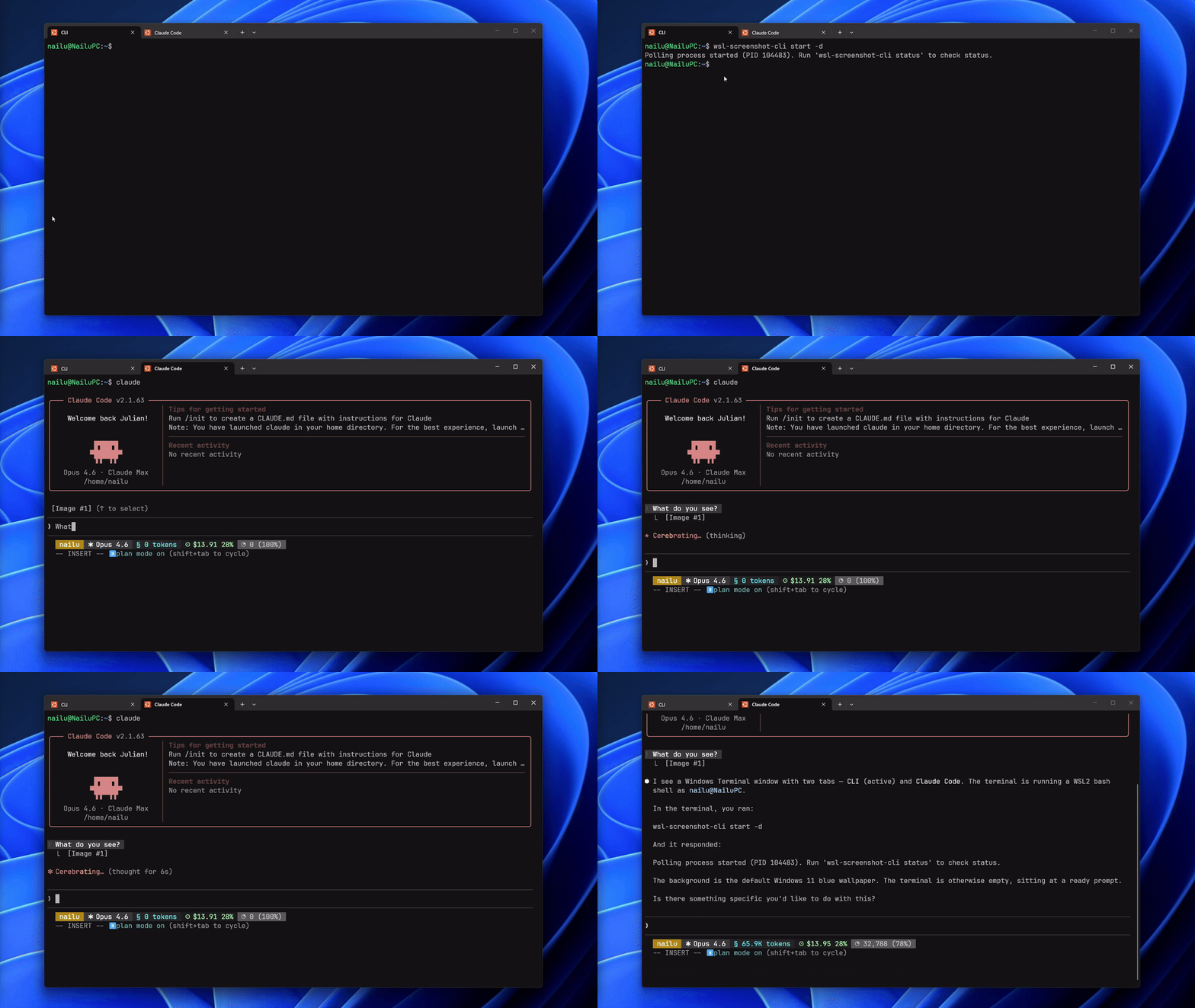
CLI tool that monitors the Windows clipboard for screenshots, making them pasteable in WSL while preserving Windows paste functionality.
If you're using Claude Code CLI on WSL, you've probably hit the same wall I did: you take a screenshot on Windows, try to paste it into Claude Code... and nothing happens. There's no way to get images from the Windows clipboard into a WSL terminal.
Now, there are workarounds. Some people report that ALT+V works for pasting images, but for others, including me, it simply doesn't. There's an open GitHub issue about it with plenty of people reporting the same problem, and as of now there's still no built-in fix.
You can also drag & drop an image file into the terminal, and that does work. But it means opening your screenshot folder, finding the right file, and dragging it in every single time. When you're someone who works on UI regularly and sends screenshots at nearly every prompt, that gets old incredibly fast.
This was driving me crazy. I use Claude Code daily and constantly want to share screenshots of errors, UI issues, or designs. Every time, I had to break my flow to manually deal with files. Killed my productivity completely.
So I built wsl-screenshot-cli, a lightweight daemon that monitors your Windows clipboard for screenshots and automatically makes them available as file paths in WSL.
How It Works
A persistent powershell.exe -STA subprocess handles all clipboard access via a custom stdin/stdout text protocol (CHECK / UPDATE / EXIT). It originally used a runtime-compiled C# ClipboardListener class (via Add-Type -TypeDefinition) with AddClipboardFormatListener for event-driven clipboard detection. A community contribution switched to pre-compiled .NET Clipboard APIs (ContainsImage(), ContainsText(), ContainsFileDropList()) because enterprise EDR software (CrowdStrike, SentinelOne, etc.) blocks csc.exe, which Add-Type requires for runtime C# compilation. The pre-compiled APIs provide the same detection without needing csc.exe. PowerShell pumps Windows messages via DoEvents() to keep the STA thread responsive. When a new bitmap is detected, it saves the PNG (deduplicated by SHA256 hash) and sets three clipboard formats at once:
CF_UNICODETEXT— WSL path to the PNG, so you can paste in WSL terminalsCF_BITMAP— the original image data, preserving normal image pasteCF_HDROP— Windows UNC path as a file drop, preserving paste-as-file
After a screenshot, you can paste the file path in a WSL terminal and still paste normally in Windows applications.

Installation
One-line install:
curl -fsSL https://nailu.dev/wscli/install.sh | bash
Then add it to your .bashrc and forget about it:
wsl-screenshot-cli start --daemon --quiet
The --quiet flag suppresses informational messages when the daemon is already running, keeping your terminal clean on every new shell session.
Or auto-start/stop with Claude Code hooks (add to ~/.claude/settings.json):
{
  "hooks": {
    "SessionStart": [
      {
        "matcher": "",
        "hooks": [
          {
            "type": "command",
            "command": "wsl-screenshot-cli start --daemon 2>/dev/null; echo 'wsl-screenshot-cli started'"
          }
        ]
      }
    ],
    "SessionEnd": [
      {
        "matcher": "",
        "hooks": [
          {
            "type": "command",
            "command": "wsl-screenshot-cli stop 2>/dev/null"
          }
        ]
      }
    ]
  }
}
Key Technical Highlights
Three Clipboard Formats: Preserving Native Paste Everywhere
Other tools that solve this problem monitor the Windows screenshot auto-save folder, but there's no official Windows API to reliably get that folder path, making them fragile. My approach: instead of watching files, intercept at the clipboard level using pre-compiled .NET Clipboard APIs (ContainsImage(), ContainsText(), ContainsFileDropList()).
The key R&D insight: set three clipboard formats simultaneously: CF_UNICODETEXT (WSL file path), CF_BITMAP (image), CF_HDROP (file drop). This preserves native paste behavior: paste in Teams/Slack/Paint → image, paste in Explorer → file, paste in WSL terminal → file path.
Uses the 3-format fingerprint to detect if clipboard still holds our write vs. a new screenshot. Smart dedup restore: even duplicate screenshots (same SHA256) trigger UpdateClipboard() to restore formats stripped by Snipping Tool's "Copy" button.
Persistent PowerShell STA Subprocess with Custom I/O Protocol
Instead of spawning a new PowerShell per operation, keeps a single long-lived powershell.exe -STA process. Communicates via a custom text protocol over stdin/stdout: CHECK → NONE or IMAGE\n<base64>\nEND, UPDATE|wslpath|winpath → OK, EXIT.
The clipboard detection initially used a runtime-compiled C# class (Add-Type -TypeDefinition) for event-driven clipboard listening, but a community contribution switched to fully pre-compiled .NET Clipboard APIs for enterprise EDR compatibility — tools like CrowdStrike and SentinelOne block csc.exe, which Add-Type requires.
STA (Single-Threaded Apartment) mode is required to avoid freezing Windows apps during clipboard access. Pumps Windows messages via DoEvents() to keep the STA thread responsive. 32MB scanner buffer to handle base64-encoded 4K screenshots.
Circuit breaker: after 5 consecutive failures, automatically restarts the PowerShell process.
Content-Addressed Storage
Every screenshot is hashed with SHA256 before saving. The hash becomes the filename. This gives you automatic deduplication. Take the same screenshot twice, and it only gets stored once.
One-Line Install, Update Detection & Auto-Update
Install script from GitHub with interactive setup wizard (shell autostart, Claude Code hooks, or both). Atomic install: temp file + mv to prevent corruption, SHA256 checksum verification against GitHub releases. Arch detection (x86_64/aarch64), WSL verification, TTY detection for curl|bash piping.
Built-in wsl-screenshot-cli update command: checks GitHub releases API, compares semver, stops daemon, downloads and replaces itself. Version check on startup notifies if a new version is available.
Stack
- Go — core CLI and clipboard monitoring logic
- Cobra — command-line interface framework
- PowerShell — Windows clipboard API interop (embedded via
go:embed) - GoReleaser — automated cross-platform builds and releases
Community Contributions
The tool has benefited from open-source contributions that improved real-world compatibility:
- EDR compatibility — Switched from runtime-compiled C# (
Add-Type) to pre-compiled .NET Clipboard APIs, fixing silent failures in enterprise environments where EDR software blockscsc.exe(PR #4) --quietflag — Suppresses informational messages when the daemon is already running, enabling clean.bashrc/.zshrcautostart (PR #2)- Broader WSL detection — Added
/proc/versionfallback for WSL environment detection whenwslinfoflags aren't available (PR #1)
Works with Claude Code CLI, or any AI coding agent running in WSL. If you're a WSL user working with AI coding tools, this might save you some daily frustration.